TL;DR: I, with the help of ChatGPT, wrote a program that helps me extract vocabulary words from PDFs. Scroll just a bit further down to see what it looks like.
Sometime in 2020 or 2021, during the COVID-19 pandemic, I overheard from some source that Albert Camus, in his book La Peste (The Plague), had quite accurately described the experience that many of us were going through at the time. Having studied French for several years, I decided that the best way to see for myself what La Peste is all about was to read it in its original, untranslated form.
I made good progress, but I certainly did not know every word. At the surface, I was faced with two choices: guess the words from context and read without stopping, or interrupt my reading to look up unfamiliar terms. The former seemed unfortunate since it stunted my ability to acquire new vocabulary; the latter was unpleasant, making me constantly break from the prose (and the e-ink screen of my tablet) to consult a dictionary.
In the end, I decided to underline the words, and come back to them later. However, even then, the task is fairly arduous. For one, words I don’t recognize aren’t always in their canonical form (they can be conjugated, plural, compound, and more): I have to spend some time deciphering what I should add to a flashcard. For another, I had to bounce between a PDF of my book (from where, fortunately, I can copy-paste) and my computer. Often, a word confused the translation software out of context, so I had to copy more of the surrounding text. Finally, I learned that given these limitations, the pace of my reading far exceeds the rate of my translation. This led me to underline fewer words.
I thought,
Perhaps I can just have some software automatically extract the underlined portions of the words, find the canonical forms, and generate flashcards?
Even thinking this thought was a mistake. From then on, as I read and went about underlining my words, I thought about how much manual effort I will be taking on that could be automated. However, I didn’t know how to start the automation. In the end, I switched to reading books in English.
Then, LLMs got good at writing code. With the help of Codex, I finally got the tools that I was dreaming about. Here’s what it looks like.
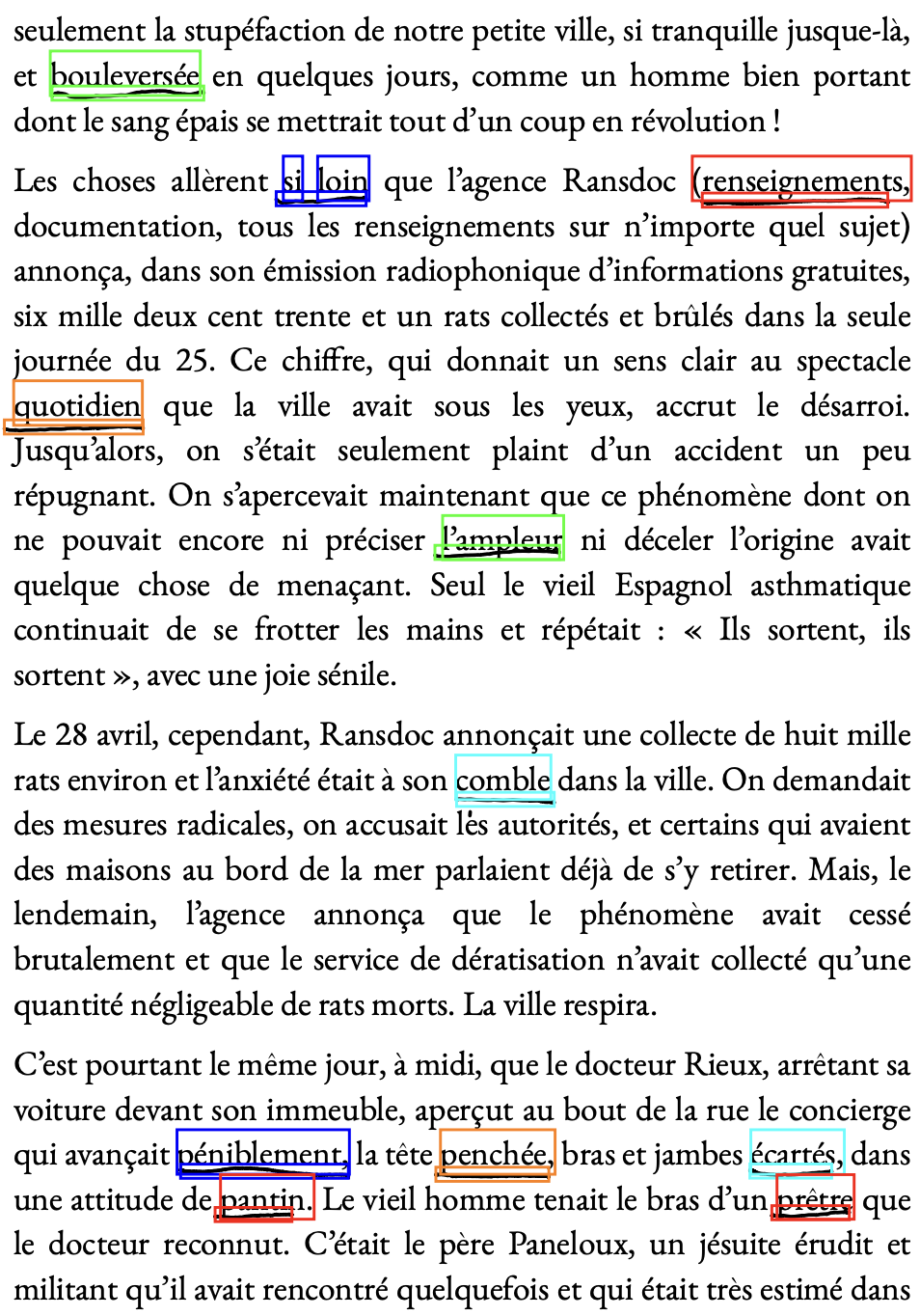
Detected underlined words on a page

Auto-flashcard application
This was my first foray into LLM-driven development. My commentary about that experience (as if there isn’t enough of such content out there!) will be interleaved with the technical details.
The Core Solution
The core idea has always been:
- Find things that look like underlines
- See which words they correspond to
- Perform
[note:
Lemmatization (Wikipedia) is the
process of turning non-canonical forms of words (like
am(eng) /suis(fr)) into their canonical form which might be found in the dictionary (to be/être). ] and translate.
My initial direction was shaped by the impressive demonstrations of OCR models, which could follow instructions at the same time as reading a document. For these models, a prompt like “extract all the text in the red box” constituted the entire targeted OCR pipeline. My hope was that a similar prompt, “extract all underlined words”, would be sufficient to accomplish steps 1 and 2. However, I was never to find out: as it turns out, OCR models are large and very expensive to run. In addition, the model that I was looking at was specifically tailored for NVIDIA hardware which I, with my MacBook, simply didn’t have access to.
In the end, I came to the conclusion that a VLM is overkill for the problem
I’m tackling. This took me down the route of analyzing the PDFs. The
problem, of course, is that I know nothing of the Python landscape
of PDF analysis tools, and that I also know nothing about the PDF format
itself. This is where a Codex v1 came in. Codex opted (from its training
data, I presume) to use the PyMuPDF package.
It also guessed (correctly) that the PDFs exported by my tablet used
the ‘drawings’ part of the PDF spec to encode what I penned. I was instantly
able to see (on the console) the individual drawings.
The LLM also chose to approach the problem by treating each drawing as just a “cloud of points”, discarding the individual line segment data. This seemed like a nice enough simplification, and it worked well in the long run.
Iterating on the Heuristic
The trouble with the LLM agent was that it had no good way of verifying whether the lines it detected (and indeed, the words it considered underlined) were actually lines (and underlined words). Its initial algorithm missed many words, and misidentified others. I had to resort to visual inspection to see what was being missed, and for the likely cause.
The exact process of the iteration is not particularly interesting. I’d tweak a threshold, re-run the code, and see the new list of words. I’d then cross-reference the list with the page in question, to see if things were being over- or under-included. Rinse, repeat.
This got tedious fast. In some cases, letters or words I penned would get picked up as underlines, and slightly diagonal strokes would get missed. I ended up requesting Codex to generate a debugging utility that highlighted (in a box) all the segments that it flagged, and the corresponding words. This is the first picture I showed in the post. Here it is again:
Detected underlined words on a page
In the end, the rough algorithm was as follows:
-
Identify all “cloud points” that are not too tall. Lines that
vertically span too many lines of text are likely not underlines.
-
The ‘height threshold’ ended up being larger than I anticipated: turns out I don’t draw very straight horizontal lines.
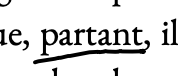
My angled underlines
-
-
Create a bounding box for the line, with some padding.
I don’t draw the lines directly underneath the text, but a bit below.
-
Sometimes, I draw the line quite a bit below; the upward padding had to be sizeable.
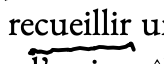
My too-low underlines
-
-
Intersect
PyMuPDFbounding boxes with the line. Fortunately,PyMuPDFprovides word rectangles out of the box.-
I required the intersection to overlap with at least 60% of the word’s horizontal width, so accidental overlaps don’t count.
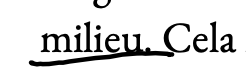
My too-wide underline hitting
Cela -
The smallest underlines are roughly the same size as the biggest strokes in my handwriting. The 60% requirement filtered out the latter, while keeping the former.
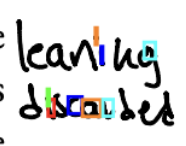
Letters of a hand-writing word detected as lines
-
- Reject underlines that overlap from the top. Since, as I mentioned, my underlines are often so low that they touch the next line.
Lemmatization and Translation
I don’t recall now how I arrived at spaCy,
but that’s what I ended up using for my lemmatization. There was only
one main catch: sometimes, instead of underlining words I didn’t know,
I underlined whole phrases. Lemmatization did not work well in those
contexts; I had to specifically restrict my lemmatization to single-word
underlines, and to strip punctuation which occasionally got tacked on.
With lemmatization in hand, I moved on to the next step: translation.
I wanted my entire tool to work completely offline. As a result, I had to
search for “python offline translation”, to learn about
argos-translate.
Frankly, the translation piece is almost entirely uninteresting:
it boils down to invoking a single function. I might add that
argos-translate requires one to download language packages — they
do not ship with the Python package. Codex knew to write a script to do
so, which saved a little bit of documentation-reading and typing.
The net result is a program that could produce:
Page 95: fougueuse -> fougueux -> fiery
Pretty good!
Manual Intervention
That “pretty good” breaks down very fast. There are several points of failure: the lemmatization can often get confused, and the offline translation fails for some of the more flowery Camus language.
In the end, for somewhere on the order of 70% of the words I underlined, the automatic translation was insufficient, and required small tweaks (changing the tense of the lemma, adding “to” to infinitive English verbs, etc.)
I thought — why not just make this interactive? Fortunately, there are
plenty of Flask applications in Codex’s training dataset. In one shot,
it generated a little web application that enabled me to tweak the source word
and final translation. It also enabled me to throw away certain underlines.
This was useful when, across different sessions, I forgot and underlined
the same word, or when I underlined a word but later decided it was not worth
including in my studying. This application produced an Anki deck, using
the Python library genanki.
Anki has a nice mechanism to de-duplicate decks, which meant that every
time I exported a new batch of words, I could add them to my running
collection.
Even then, however, cleaning up the auto-translation was not always easy. The OCR copy of the book had strange idiosyncrasies: the letters ‘fi’ together would OCR to ‘=’ or ‘/’. Sometimes, I would underline a compound phrase that spanned two lines; though I knew the individual words (and would be surprised to find them in my list), I did not know their interaction.
In the end, I added (had Codex add) both a text-based context and a visual capture of the word in question to the web application. This led to the final version, whose screenshot I included above. Here it is again:
Auto-flashcard application
The net result was that, for many words, I could naively accept the automatically-generated suggestion. For those where this was not possible, in most cases I only had to tweak a few letters, which still saved me time. Finally, I was able to automatically include the context of the word in my flashcards, which often helps reinforce the translation and remember the exact sense in which the word was used.
To this day, I haven’t found a single word that was underlined and missed, nor one that was mis-identified as underlined.
Future Direction
In many ways, this software is more than good enough for my needs. I add a new batch of vocabulary roughly every two weeks, during which time I manually export a PDF of La Peste from my tablet and plug it into my software.
In my ideal world, I wouldn’t have to do that. I would just underline some words, and come back to my laptop a few days later to find a set of draft flashcards for me to review and edit. In an even more ideal world, words I underline get “magically” translated, and the translations appear somewhere in the margins of my text (while also being placed in my list of flashcards).
I suspect LLMs — local ones — might be a decent alternative technology to “conventional” translation. By automatically feeding them the context and underlined portion, it might be possible to automatically get a more robust translation and flashcard. I experimented with this briefly early on, but did not have much success. Perhaps better prompting or newer models would improve the outcomes.
That said, I think that those features are way beyond the 80:20 transition: it would be much harder for me to get to that point, and the benefit would be relatively small. Today, I’m happy to stick with what I already have.
In the next part of this series, I will talk more about how this project influenced my views on LLMs.